
To access the Reports Health page
Details of the Reports Health page
To run a report from the Reports Health page
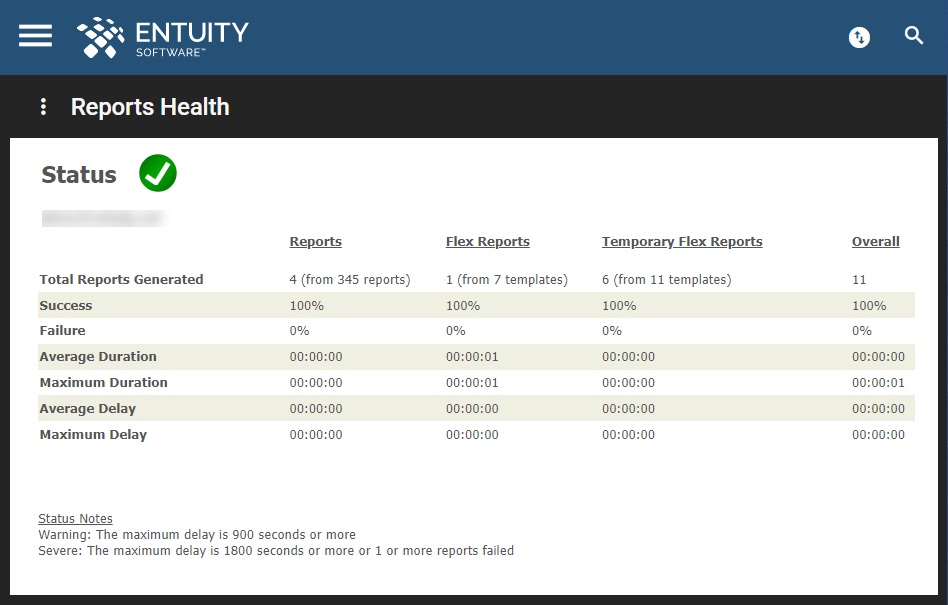
The Reports Health page displays the overall health of Entuity reporting.
To access the Reports Health page:
- In the Main Menu, click System Information.
- In the System Information table, click the icon (either a green tick or a red cross) in the Reports column.
- This will take you to the Reports Health page.
Details of the Reports Health page:
The information shown on this page is as follows, against standard reports, Flex Reports, Temporary Flex Reports and overall performance:
| Row Name | Row Description |
|---|---|
| Total Reports Generated | number of generated reports. |
| Success | percentage of successfully generated reports. |
| Failure | percentage of reports that failed to generate. |
| Average Duration | average time taken to successfully generate a report. |
| Maximum Duration | maximum time taken to successfully generate a report. |
| Average Delay | average time delay between when a scheduled report was intended to run and when Entuity started to generate a successful report. |
| Maximum Delay | maximum time delay between when a scheduled report was intended to run and when Entuity started to generate a successful report. |
To run a report from the Reports Health page:
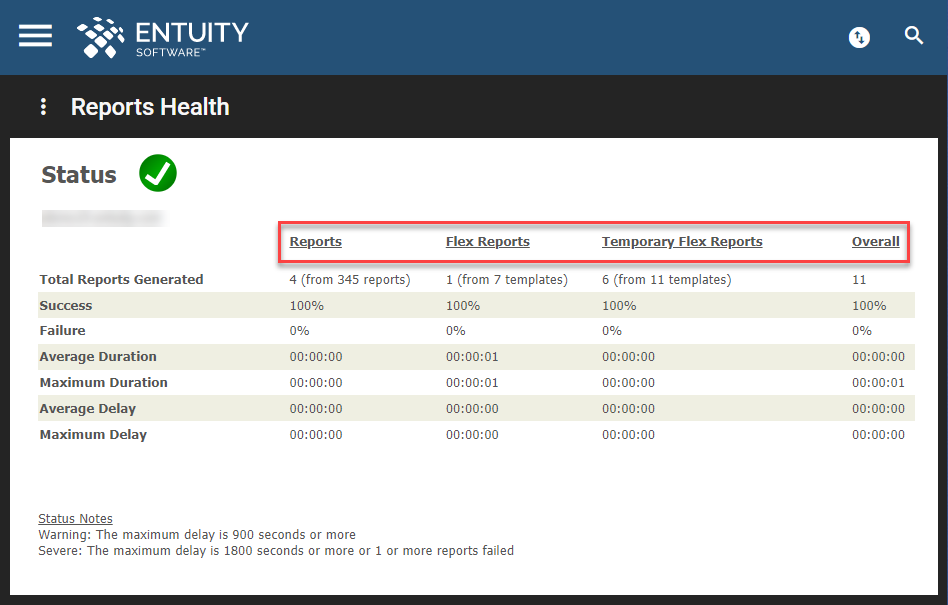
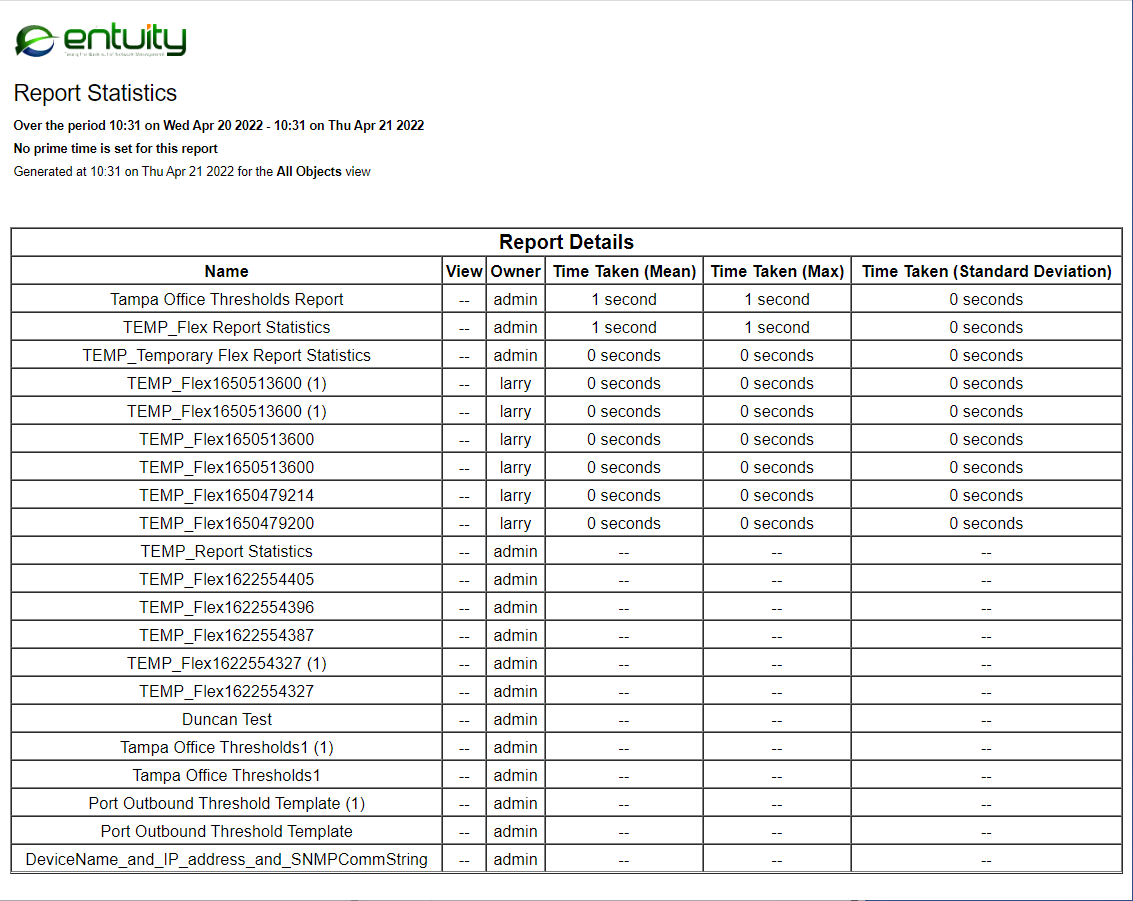
- Click on Reports, Flex Reports, Temporary Flex Reports or Overall in the column headings to run a report in the selected report category in a new page.
Comments
0 comments
Please sign in to leave a comment.